
Midsummer
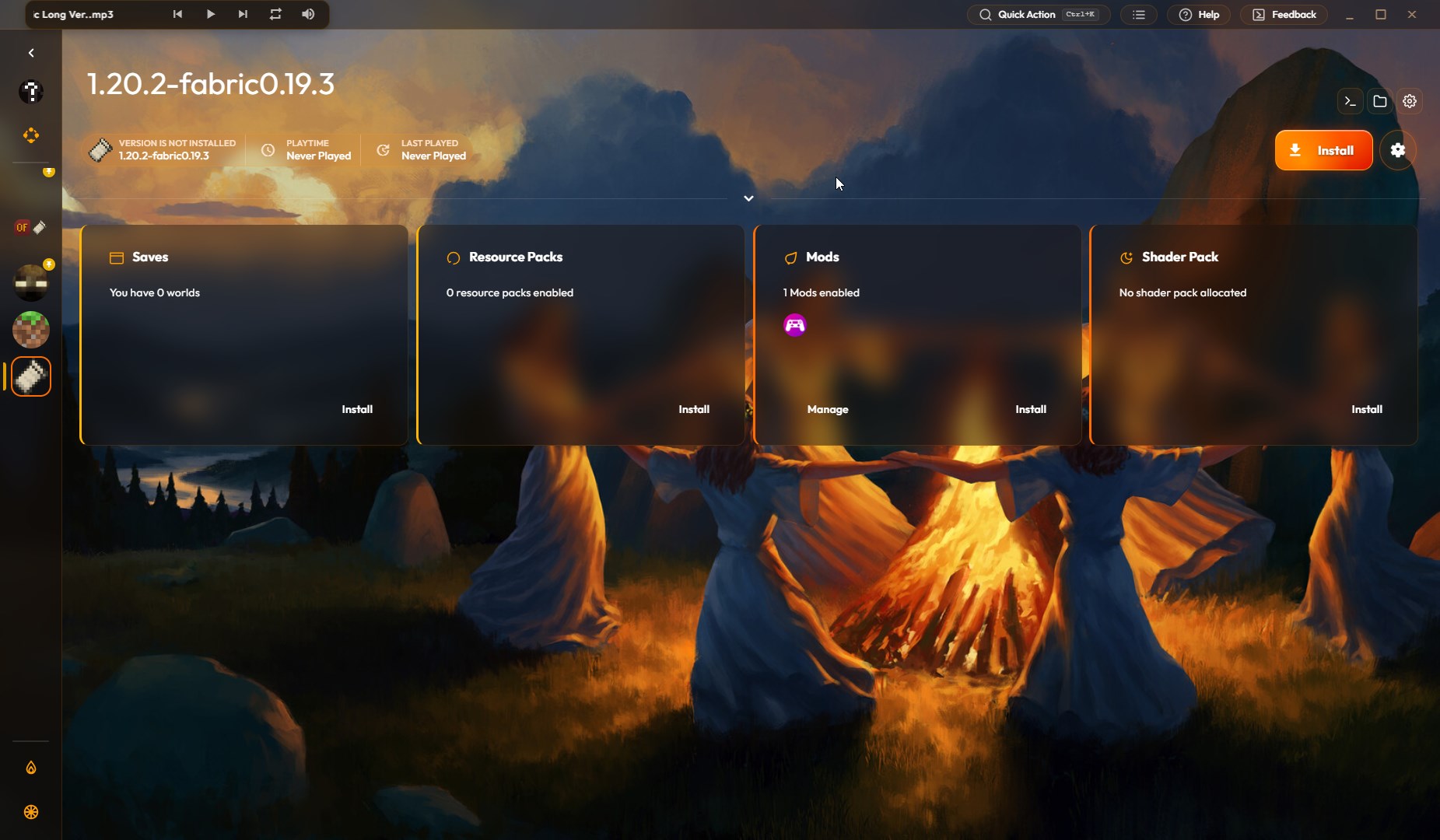
A warm, bright appearance preset inspired by the height of summer, featuring soft natural elements.
Custom appearance presets created by the community
A warm, bright appearance preset inspired by the height of summer, featuring soft natural elements.
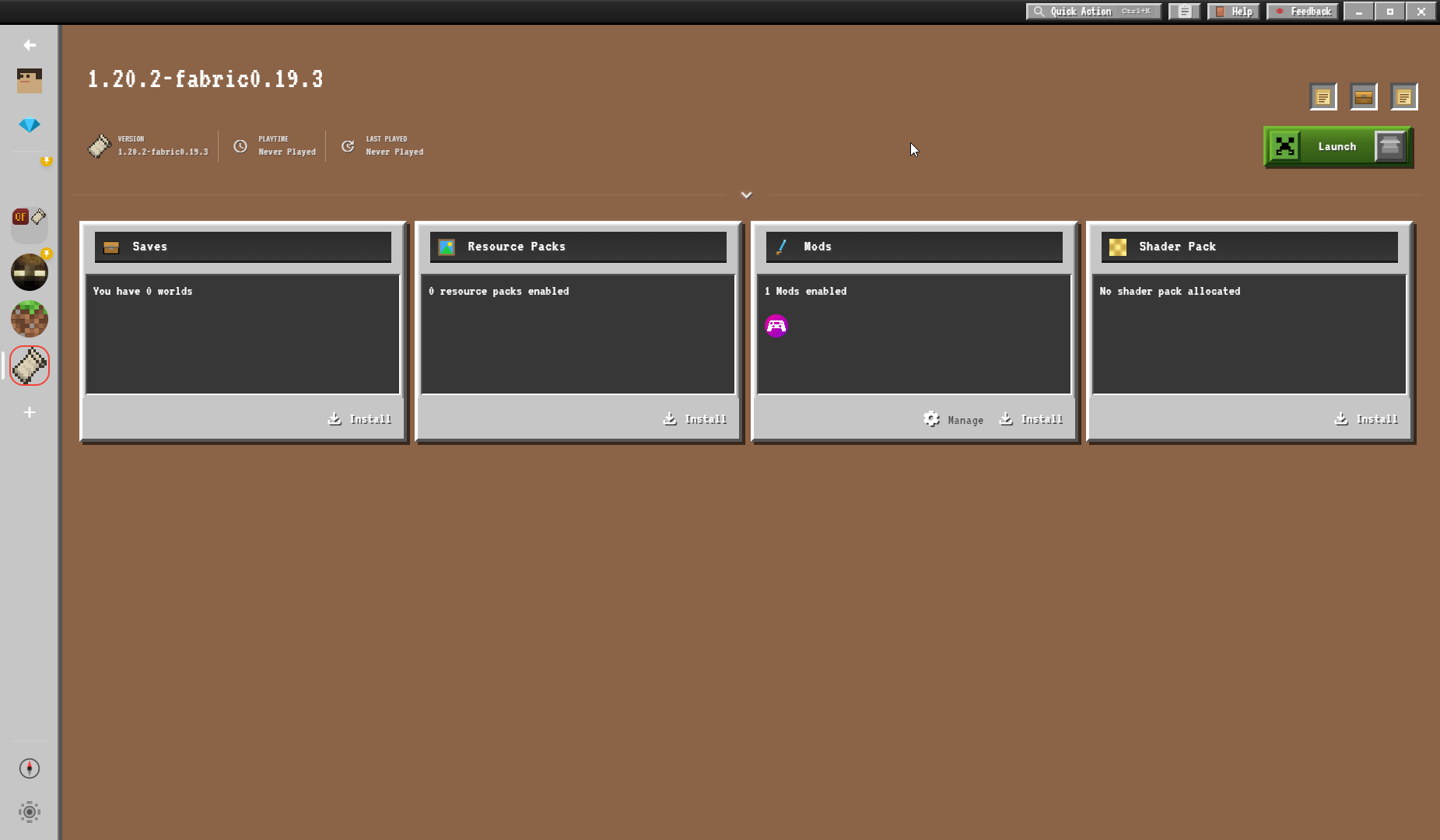
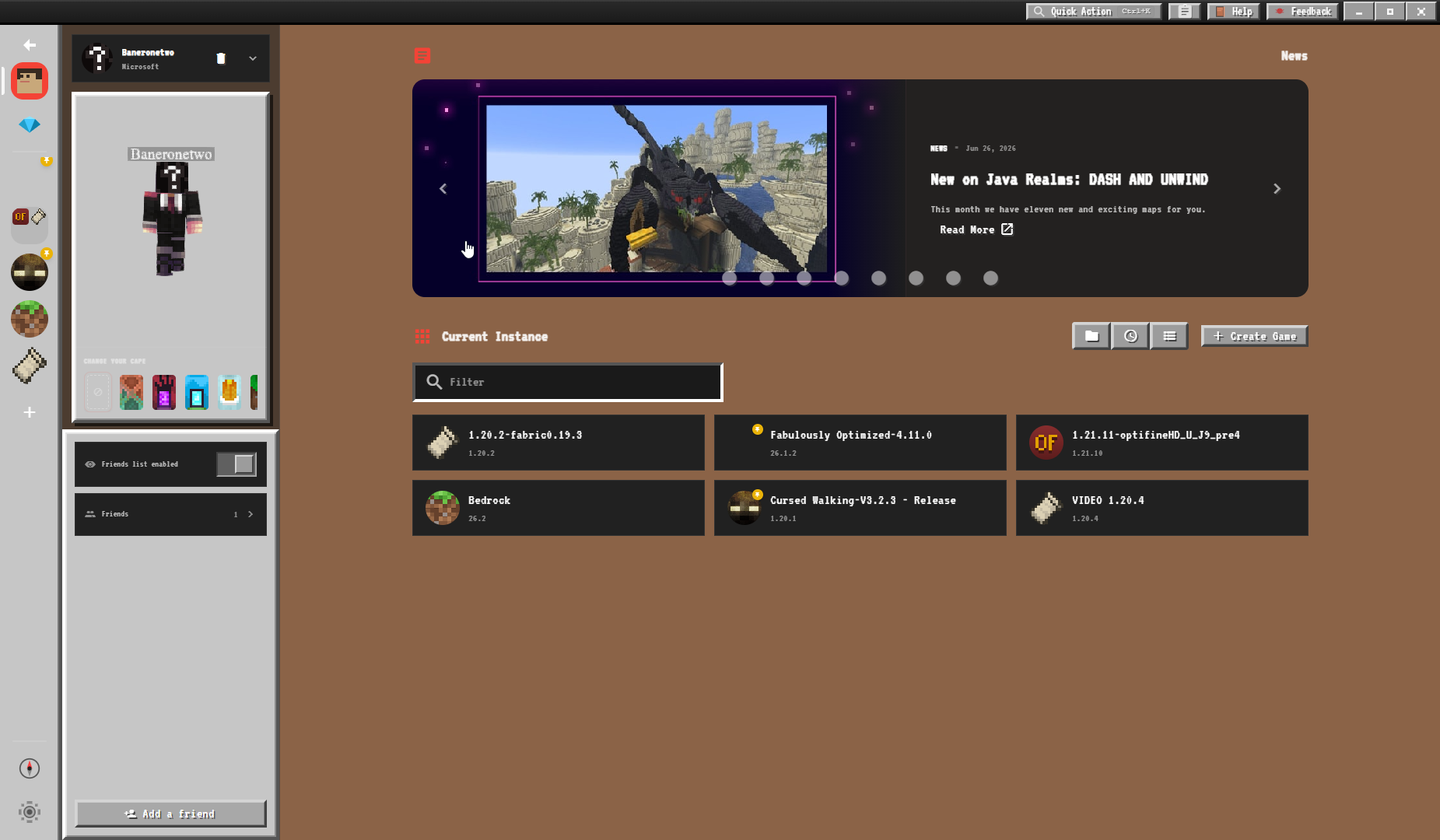
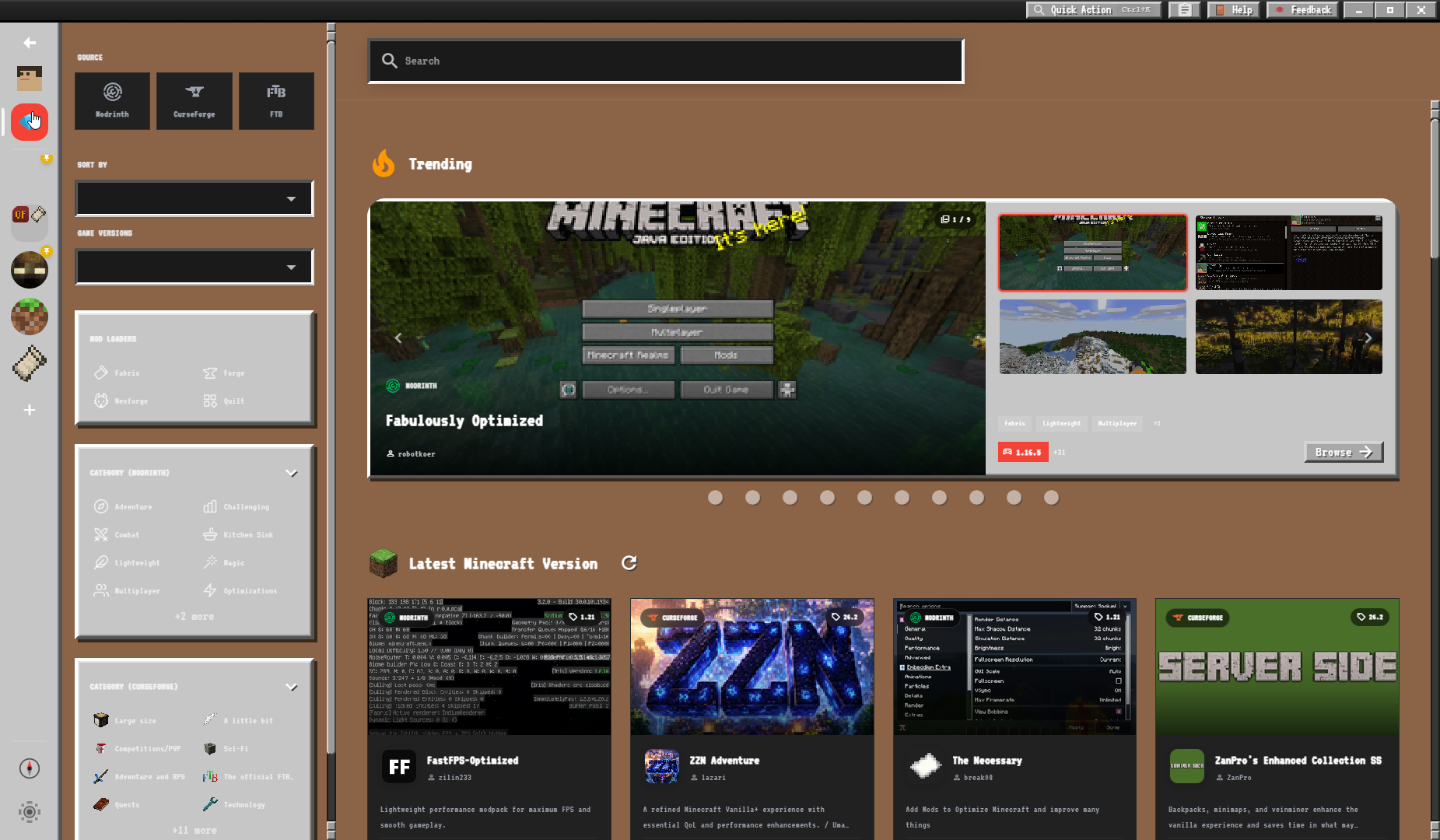
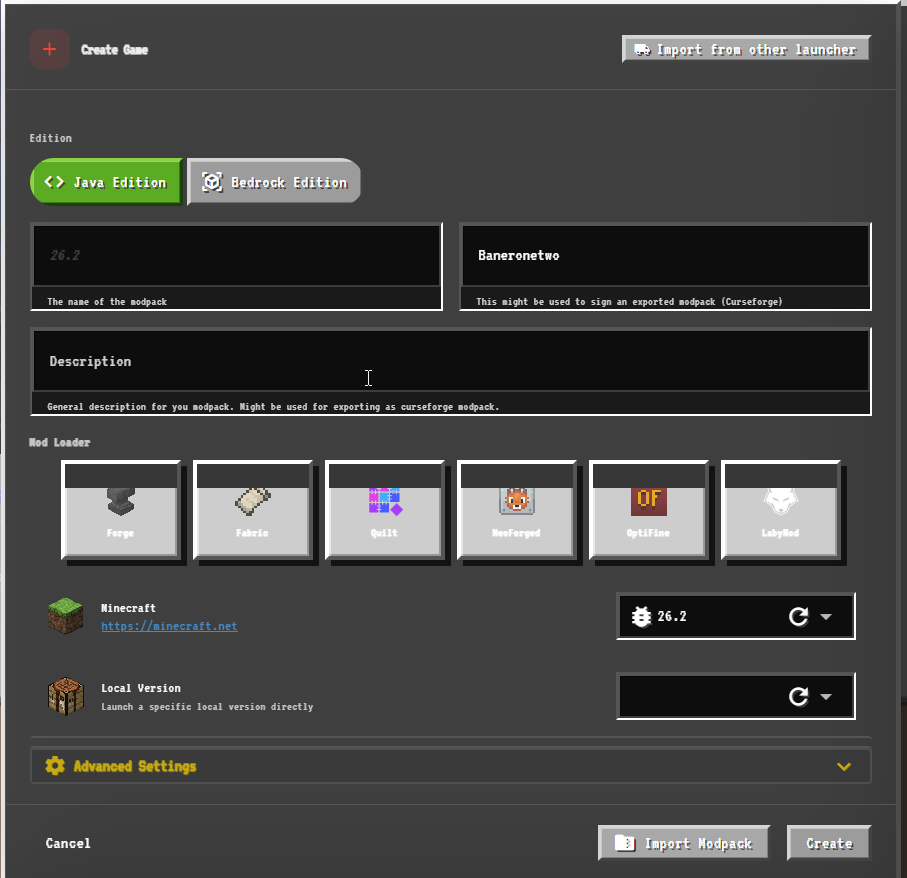
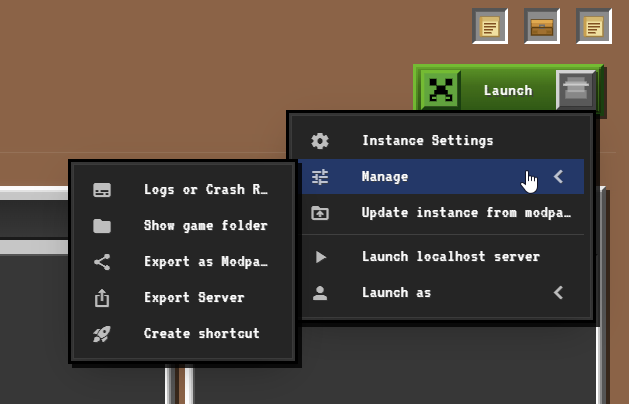
A classic theme inspired by the blocks, textures, and interface of Minecraft.
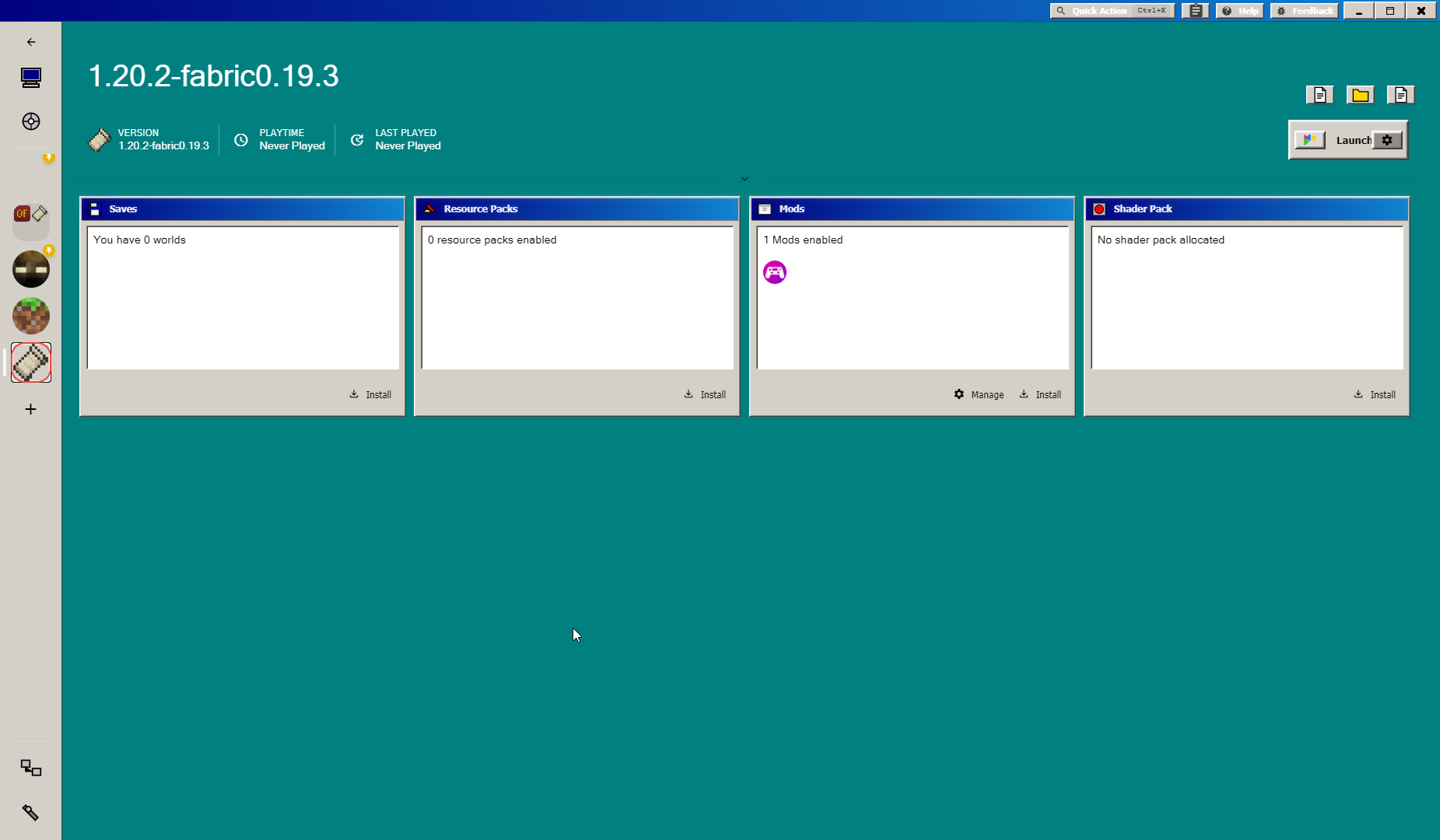
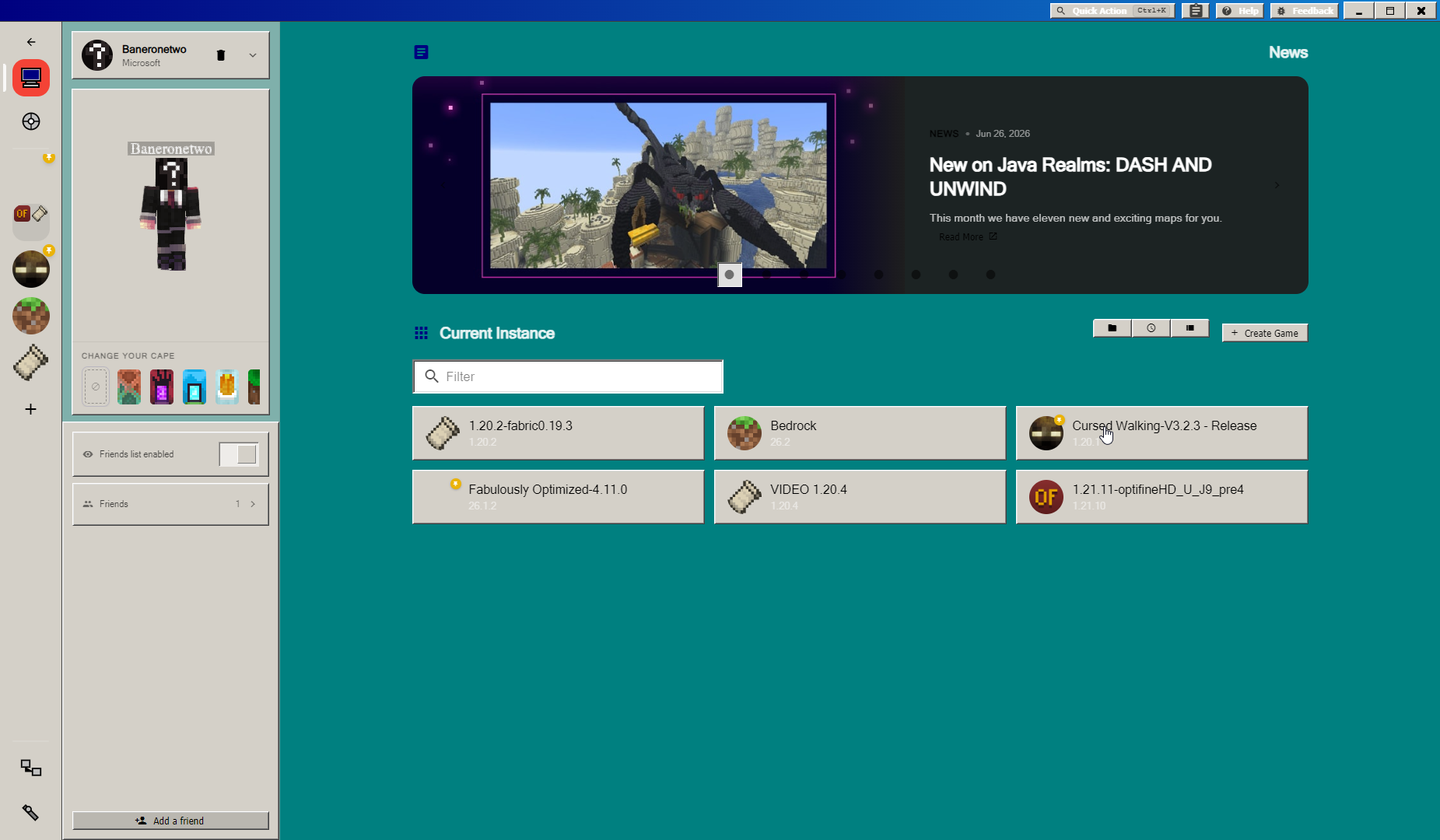
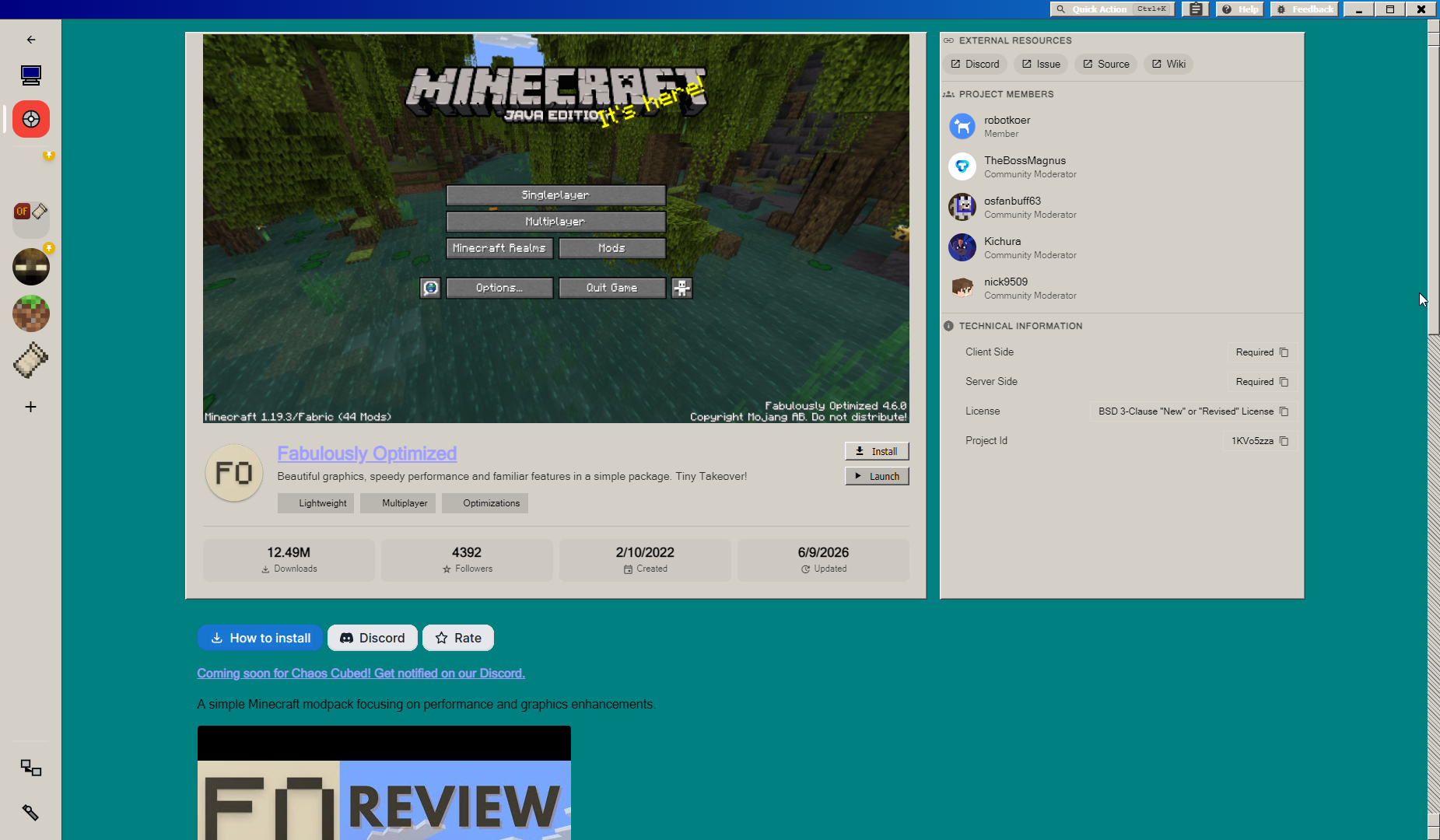
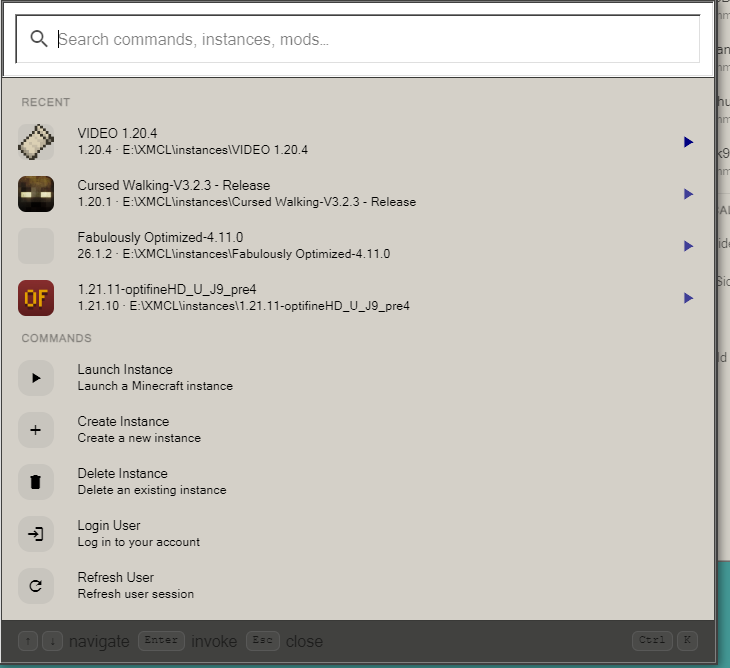
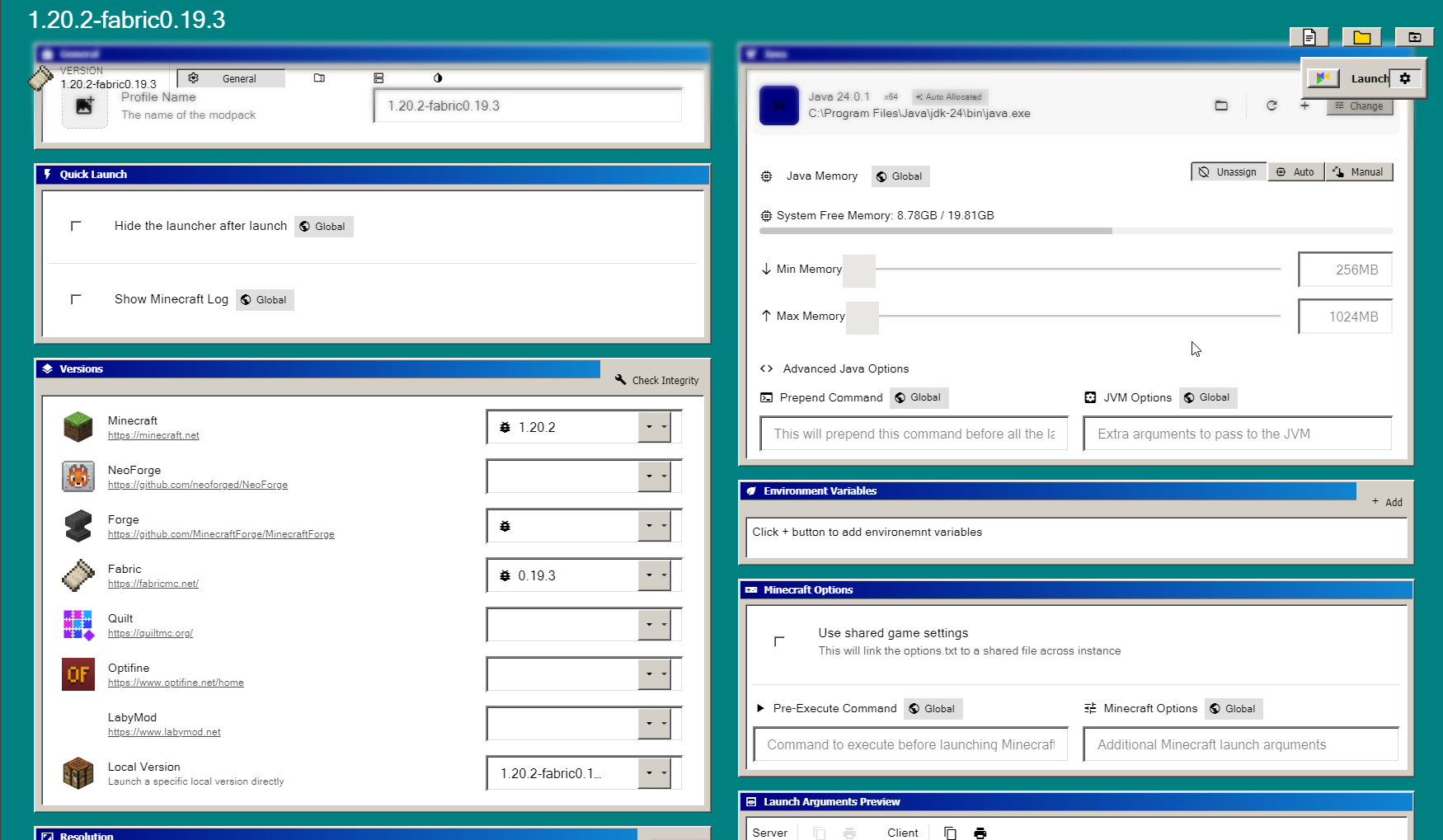
A nostalgic retro theme recreating the classic gray aesthetic, icons, and windows of Windows 98.
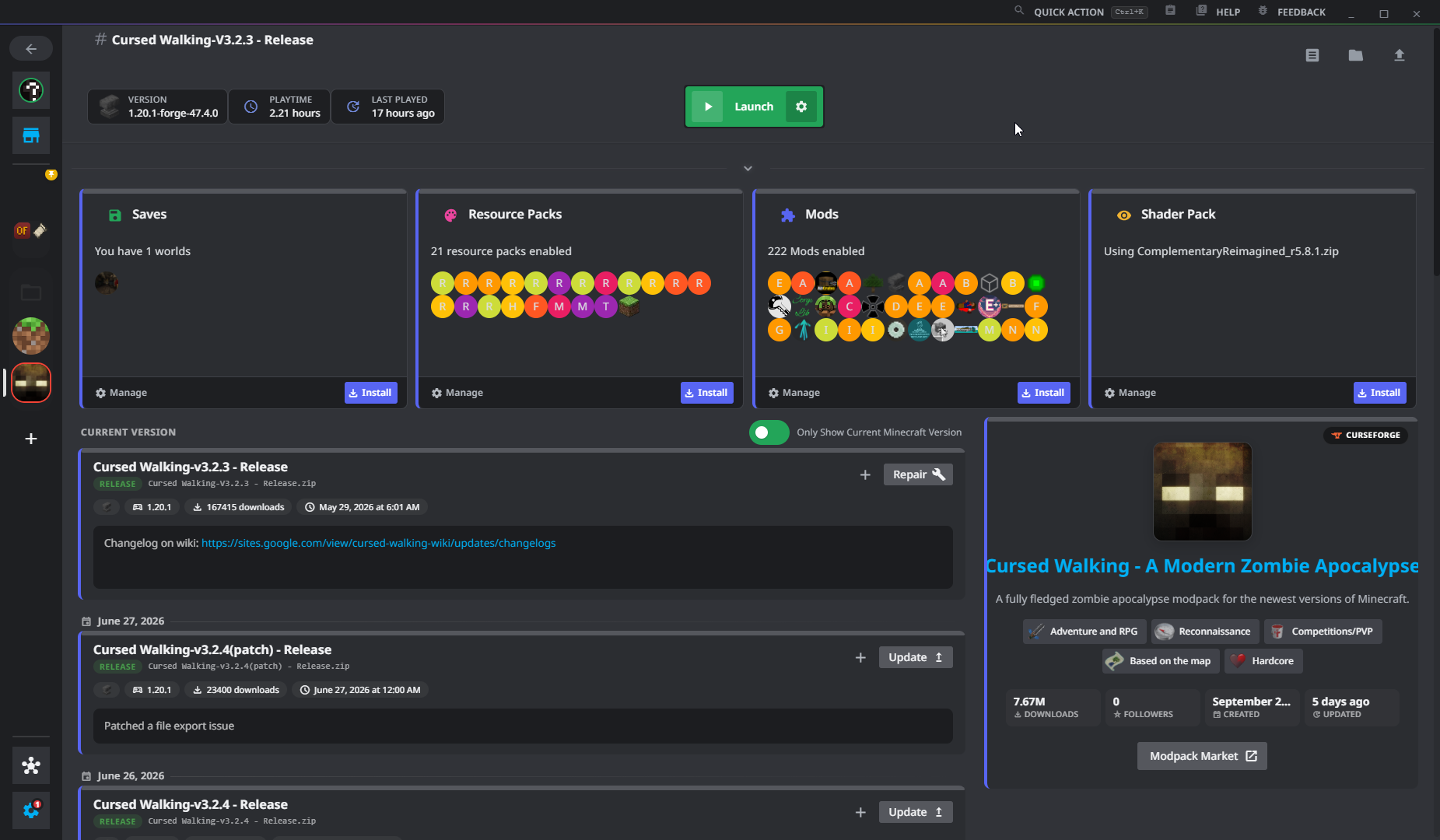
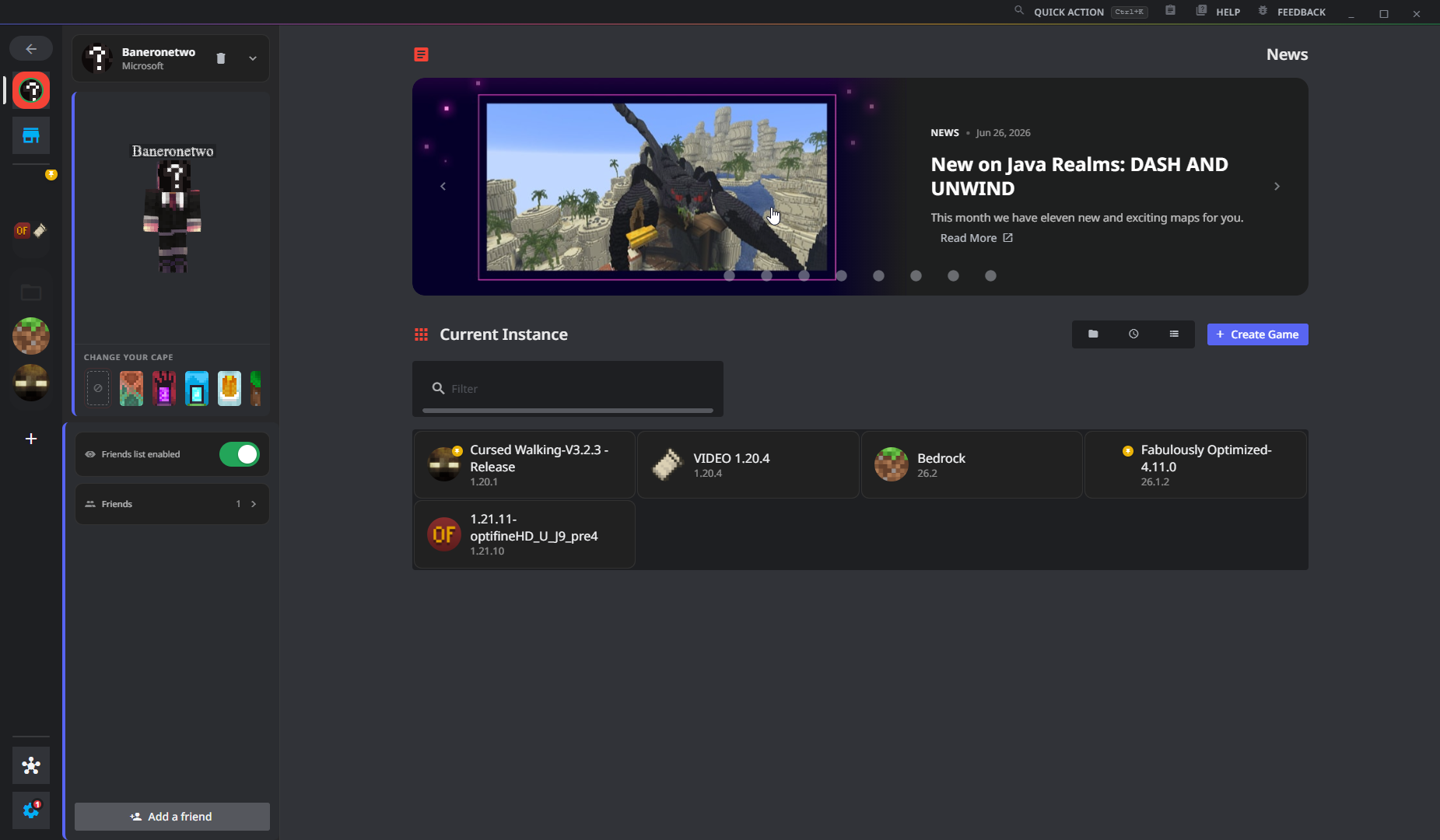
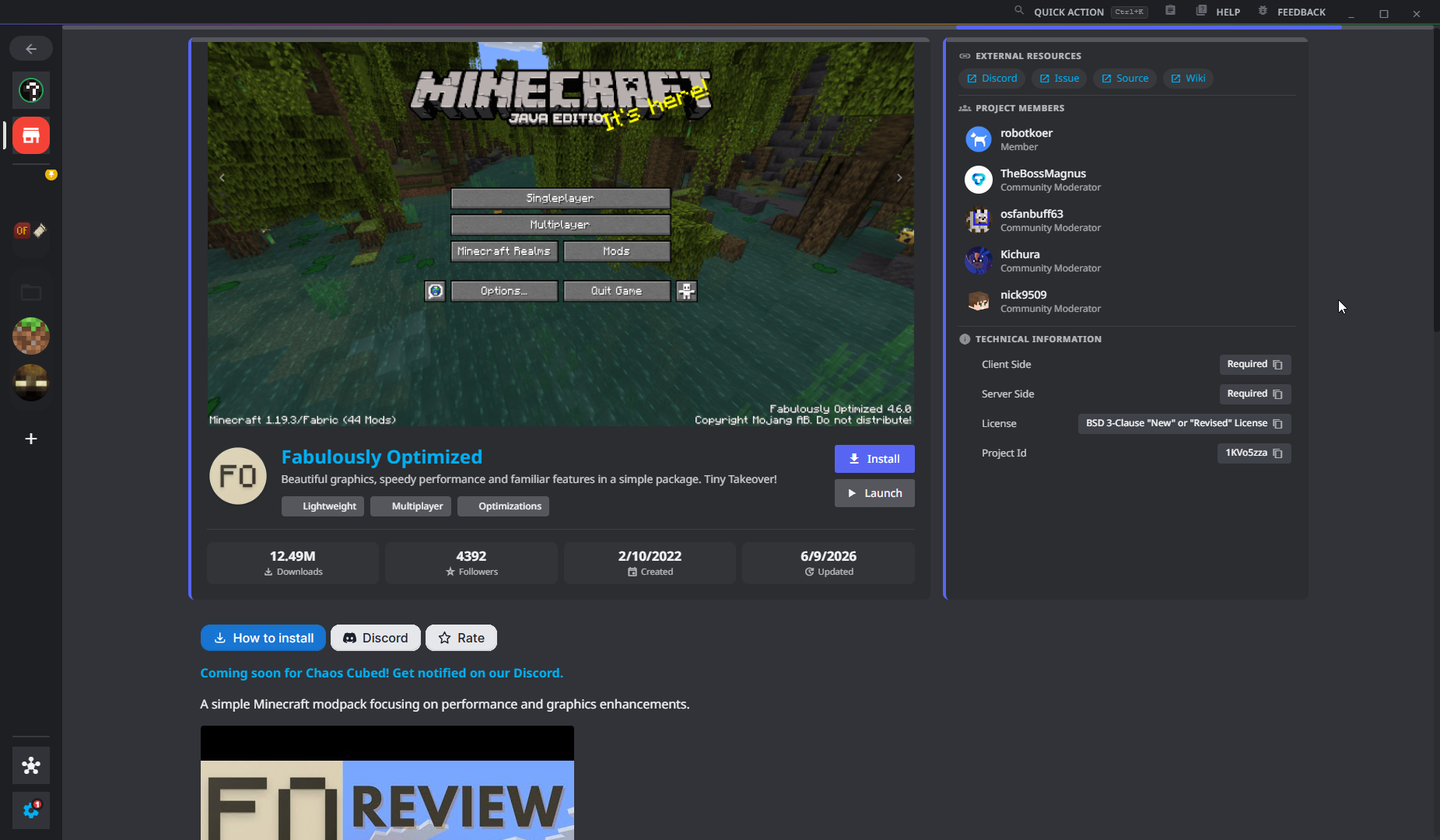
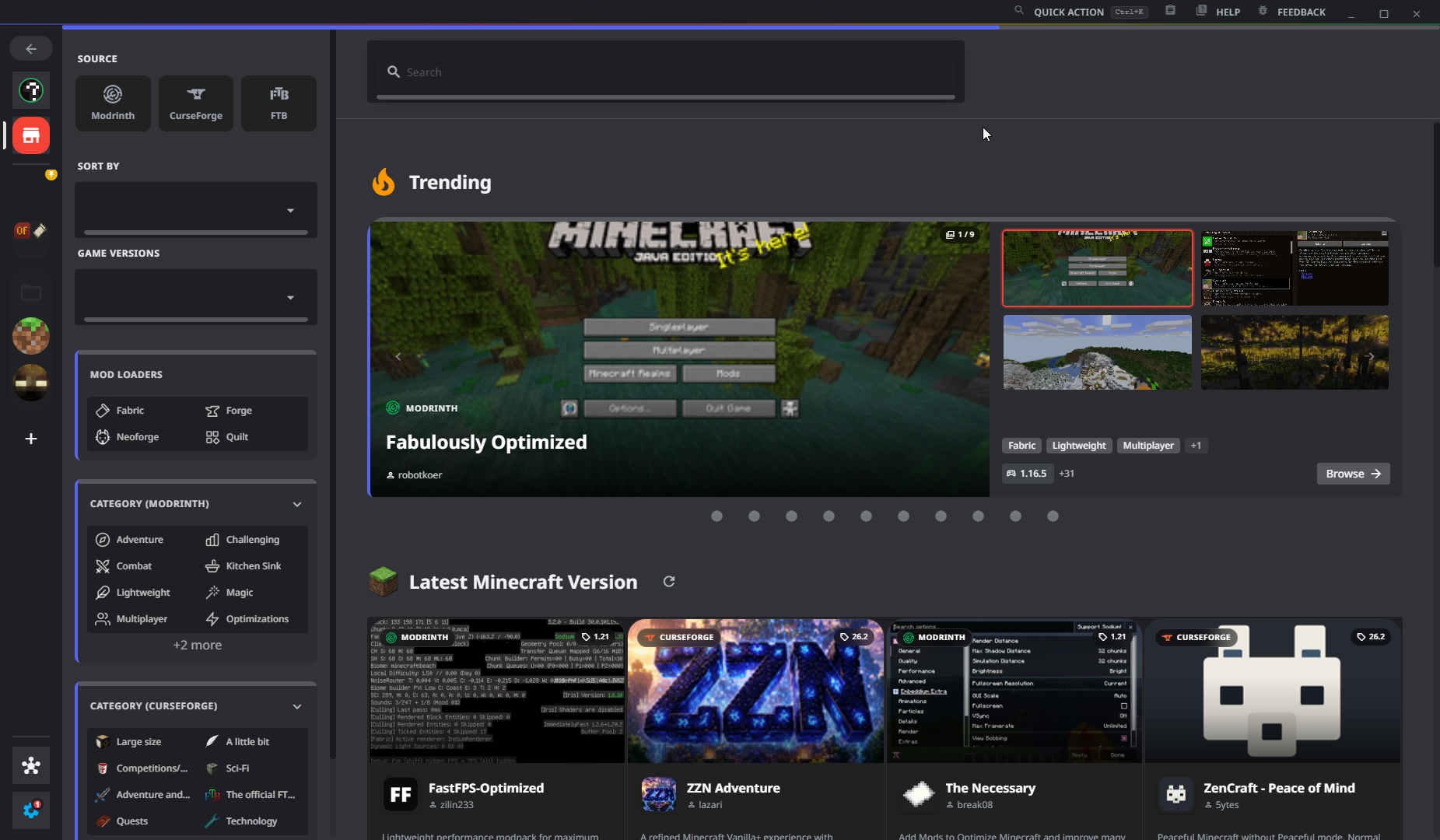
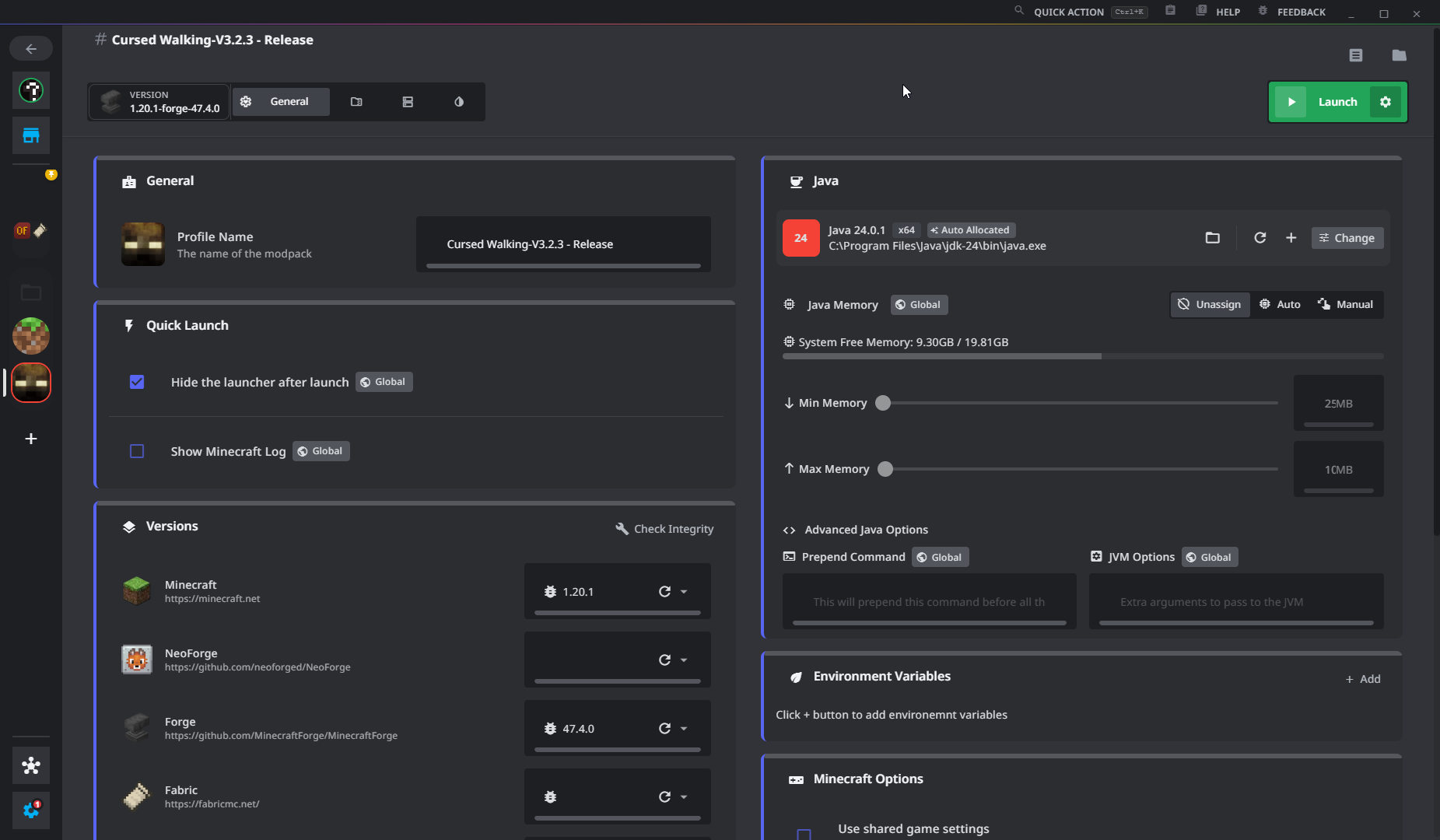
A dark theme inspired by the signature gray-blue color palette, rounded elements, and layout of Discord.

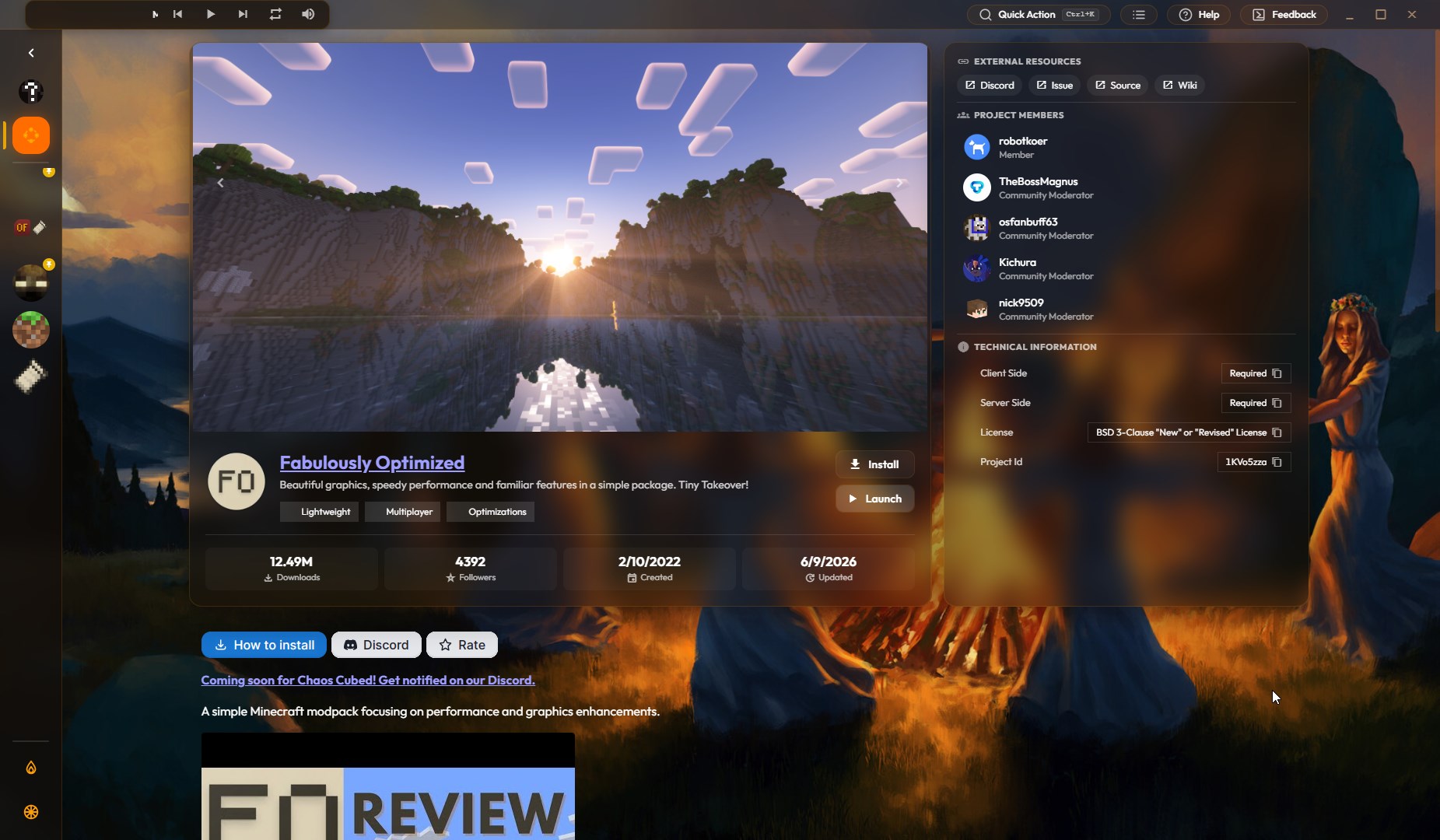
Beautiful graphics, speedy performance and familiar features in a simple package. Chaos Cubed alpha! (Source: Modrinth)


85+ New mobs with stylistic quality above the default game. (Source: Modrinth)


Adds 50+ unique biomes to enhance your world, with new trees, flowers, and more! (Source: Modrinth)

Enables the fullscreen mode 'Borderless Window', which replaces the standard Minecraft fullscreen (Source: Modrinth)

Lets you use capes from OptiFine, LabyMod and other cape mods (Source: Modrinth)


A Minecraft mod that allows for efficient connected textures (Source: Modrinth)


A flexible and expandable accessory/equipment API for users and developers. (Source: Modrinth)

Using async path-tracing to hide Block-/Entities that are not visible (Source: Modrinth)

Lightweight and modular API providing common hooks and intercompatibility measures utilized by mods using the Fabric toolchain. (Source: Modrinth)

Speed up immediate mode rendering in Minecraft (Source: Modrinth)

Sodium addon providing support for the Fabric Rendering API, based on Indigo (Source: Modrinth)

Take control over your inventory. Sort. Move matching Items. Throw all. Locked slots. Gear sets! And much more. (Source: Modrinth)

A modern shader pack loader for Minecraft intended to be compatible with existing OptiFine shader packs (Source: Modrinth)

Iron Chests mod has chests for the various metals in vanilla minecraft with varying sizes! (Source: Modrinth)


Real-time map used for mapping in-game or your browser as you explore. (Source: Modrinth)


Adds dynamic lights to Minecraft as the most feature-complete and optimized dynamic lighting mod. (Source: Modrinth)

No-compromises game logic optimization mod, useful for both single-player games and multi-player servers. (Source: Modrinth)


Adds vanilla doors with every wood color and new unique doors! Such as western, garage, shoji and more...! (Source: Modrinth)

Adds new vanilla styled fences, walls and gates! (Source: Modrinth)

All-in-one mod that improves performance, reduces memory usage, and fixes many bugs. Compatible with all your favorite performance mods! (Source: Modrinth)

Adds a mod menu to view the list of mods you have installed. (Source: Modrinth)

Enhances inventory management by adding various functions to the mouse buttons. (Source: Modrinth)

Accessible, Data-Driven, Dependency-Free Documentation for Minecraft Modders and Pack Makers (Source: Modrinth)


Take control of the position of your GUI and fix the broken hotbar selection texture! (Source: Modrinth)

Searchables is a library mod that adds helper methods that allow for searching and filtering elements based on components, as well as offering built in auto-complete functionality. (Source: Modrinth)

View the contents of shulker boxes from your inventory (Source: Modrinth)

A high-performance rendering engine replacement for Minecraft, which greatly improves frame rates and reduces micro-stutter. (Source: Modrinth)

A Sodium addon that adds features that shouldn't be in Sodium. (Source: Modrinth)

Yet another backpack mod this time with backpack you can place in world, color in different color combinations, upgrade with more inventory and enhance with many functional upgrades (Source: Modrinth)


Tinker a little, modify all the tools, build a smeltery, then tinker a little more. The classic modular tool mod. (Source: Modrinth)


Unique and upgradeable backpacks with customisation, Curios API/Trinkets integration and more! (Source: Modrinth)

Teleport back to activated waystones. For Survival, Adventure or Servers. (Source: Modrinth)

Displays a map of the nearby world terrain, players, mobs, entities in the corner of your screen. Lets you create waypoints which help you find the locations you've marked. (Source: Modrinth)

Adds a full screen world map which shows you what you have explored in the world. Works great together with Xaero's Minimap. (Source: Modrinth)


A light-weight resource pack mainly provide vanilla-look 3D models (Source: Modrinth)


The original Minecraft texture feel, with double the resolution and double the fun! (Source: Modrinth)

Realistic textures with vanilla colors custom-made for shaders (Source: Modrinth)

A well performing fantasy styled shaderpack with emphasis on scene variation and customization. (Source: Modrinth)

Shaderpack for Minecraft: Java Edition. It's bright, colorful, and distinct. (Source: Modrinth)

Preserving the elements of Minecraft with exceptional quality, detail, and performance. (Source: Modrinth)

Transforming the visuals of Minecraft with exceptional quality, detail, and performance. (Source: Modrinth)

Want to share your custom theme? Fork the repository, add your theme folder inside `themes/your-theme/` and open a Pull Request!